Traverse – User Login & Navigation Guide
Step 1: Application Login Access Workflow
User Account Creation
- The Administrator creates a user account in the Traverse platform.
- An invitation email is sent to the user's registered email address.
Account Activation
- Open the invitation email received from the Administrator.
- Click the activation link provided in the email.
- Complete the account activation process.
User Login
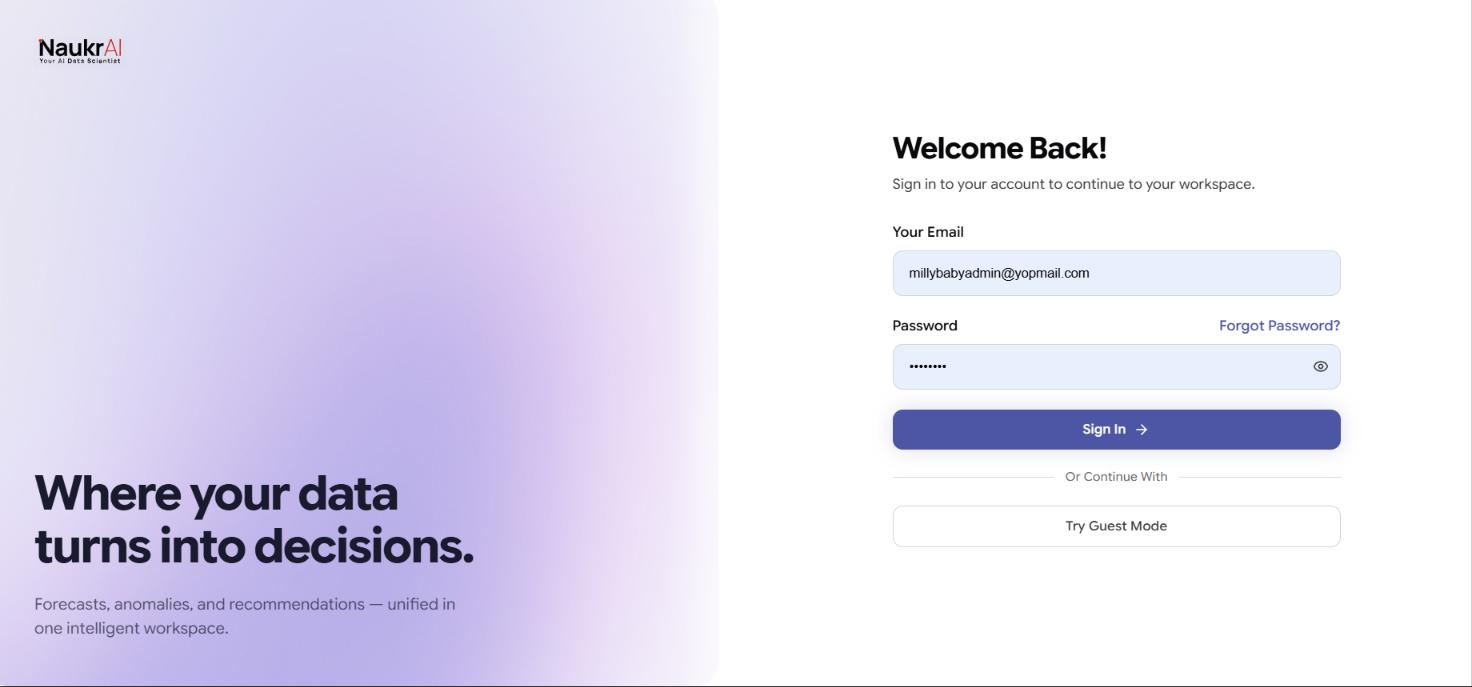
- Navigate to app.naukr.ai.
- Enter your registered email address.
- Enter your password.
- Click Sign In.
- Upon successful authentication, you will be granted access to the Traverse platform.
Step 2: Access the Agent Hub
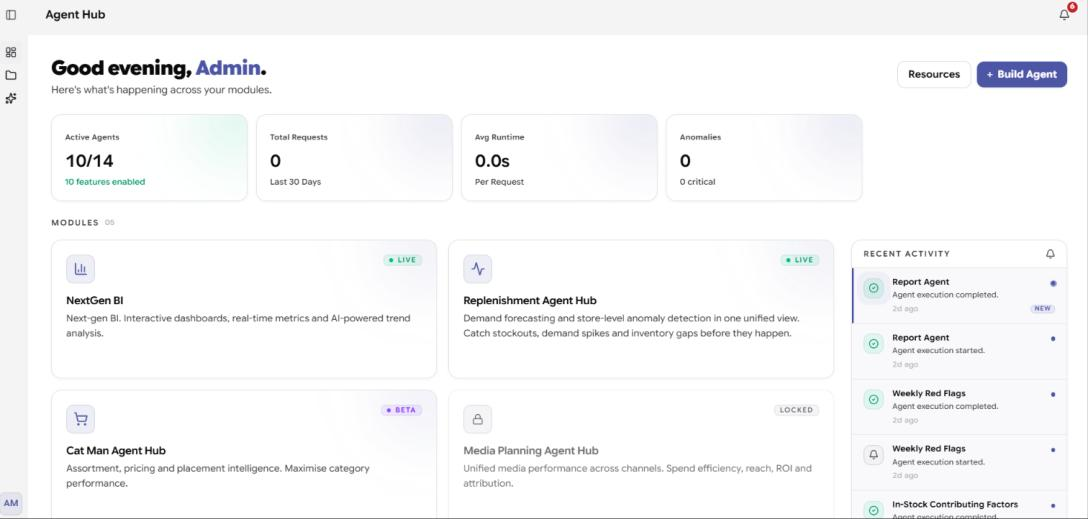
- After successful login, users are redirected to the Agent Hub.
- The Agent Hub serves as the central workspace for accessing AI-powered applications and business workflows.
Step 3: Access Replenishment Center
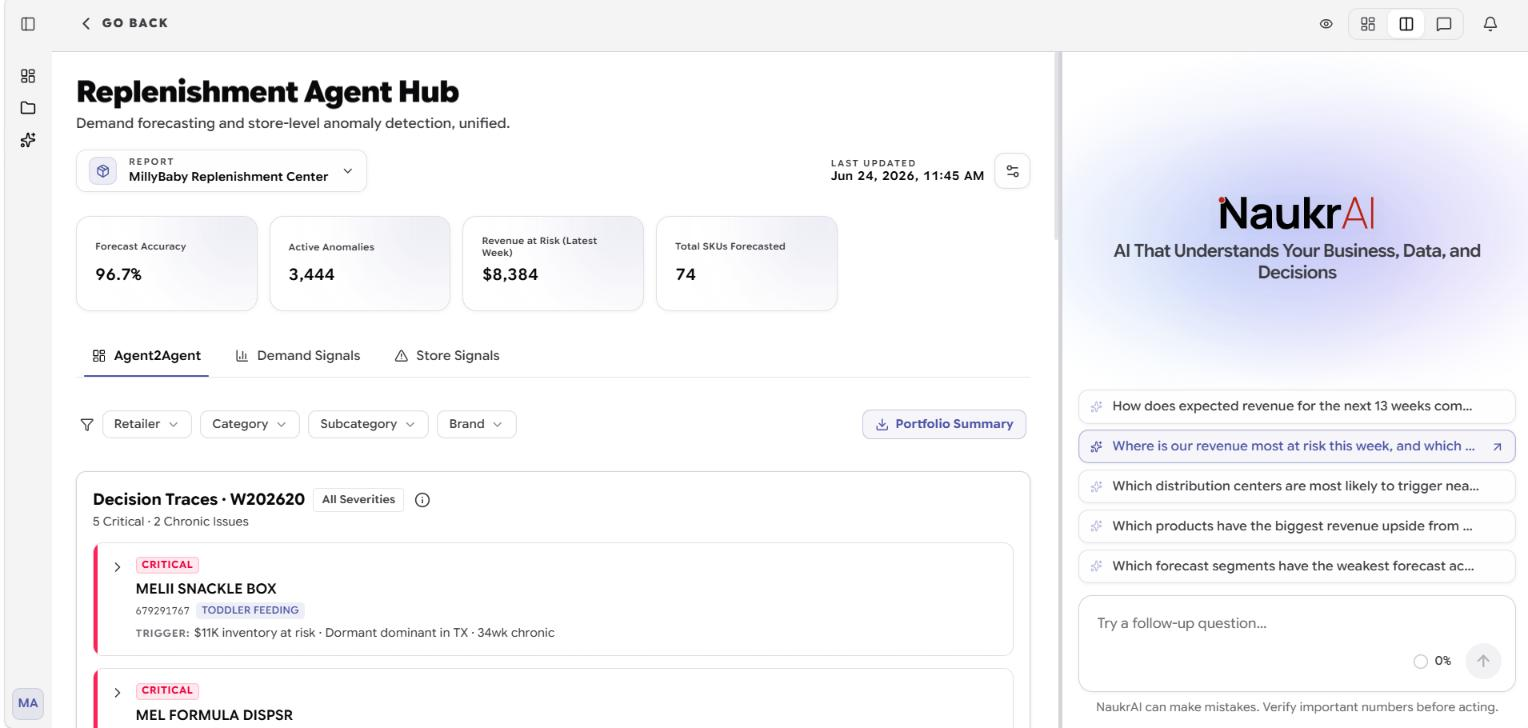
- Navigate to Replenishment Center from the menu.
- View the Replenishment Agent Hub dashboard.
- Access replenishment metrics, demand signals, inventory signals, alerts, and recommendations.
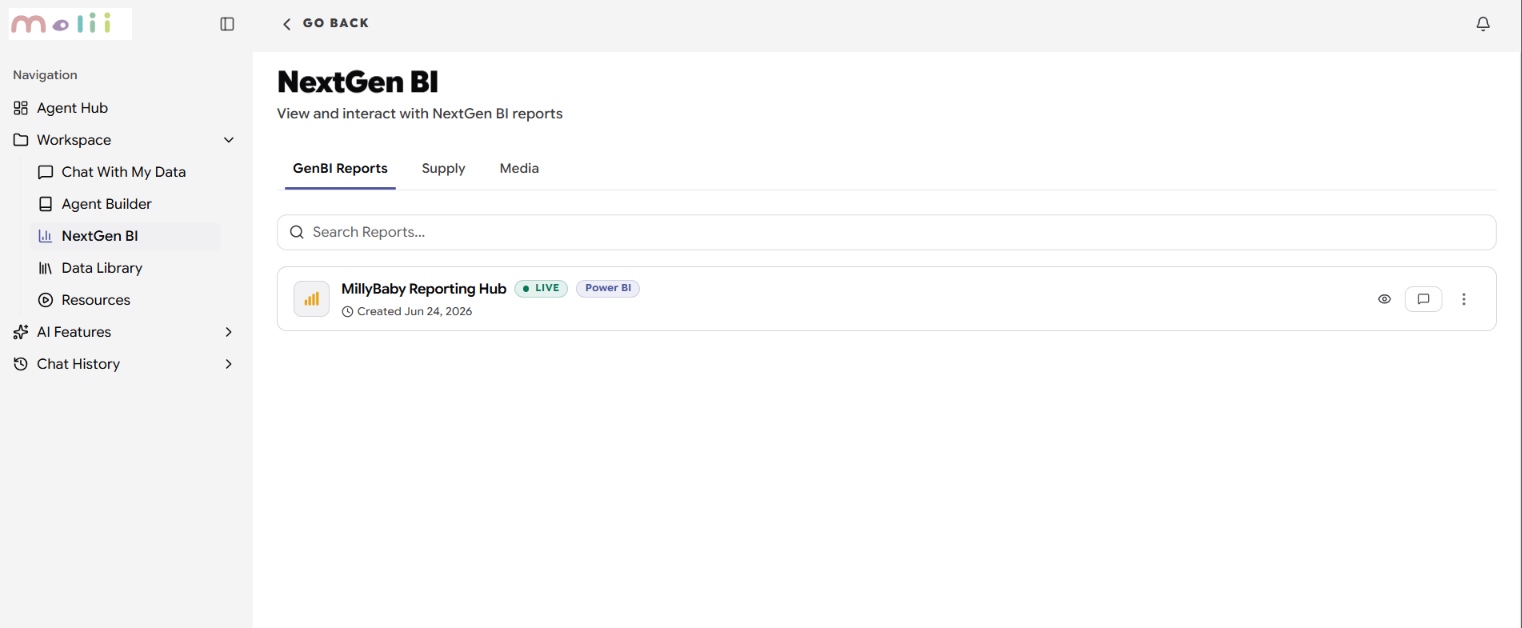
Step 4: Access NextGen BI
- Navigate to NextGen BI from the menu.
- Access Power BI dashboards through a conversational interface.
- Interact with reports and analytics using natural language queries.
Step 5: Access Support
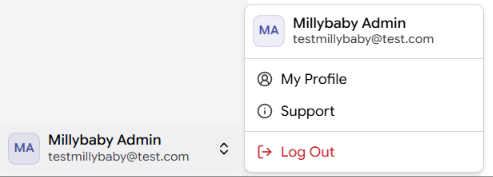
- Click on the user profile located at the bottom-left corner of the platform.
- Select Support from the profile menu.
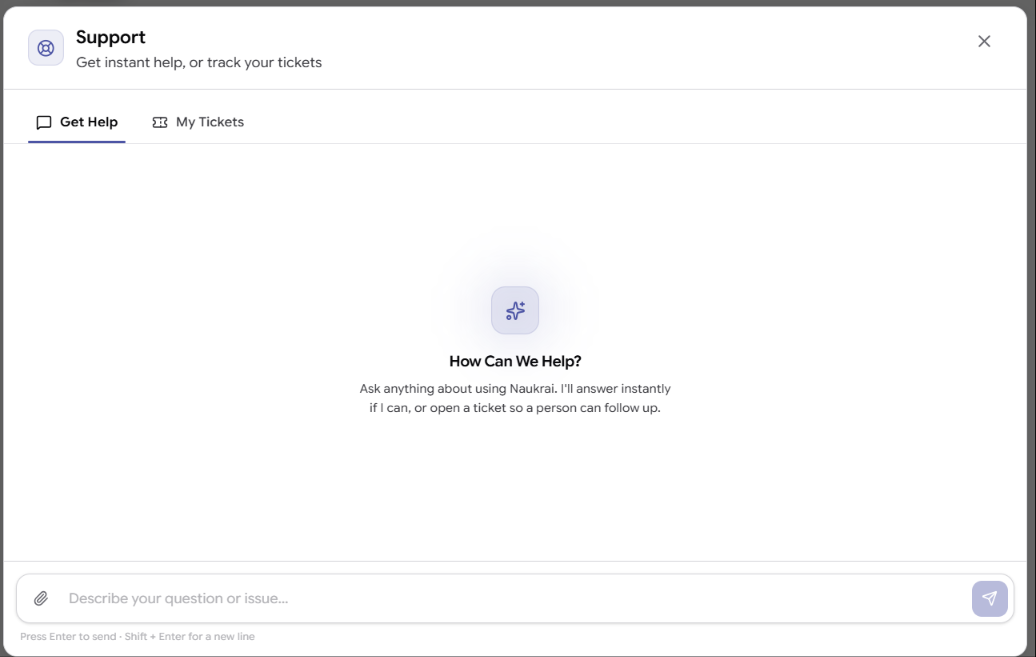
- The Support Center allows users to:
- Get instant help.
- Raise support tickets.
- Track existing tickets under My Tickets.
- Ask questions related to platform usage.
- Enter your question or issue in the support chat box and submit it for assistance.